
AI Rendering for Architecture & Interiors
For architects, designers and interior showrooms — explore visual options within your existing workflow.
Create and edit presentation images from model views, drawings or site photos. Choose an Agent for the task, explore options and refine your presentation.
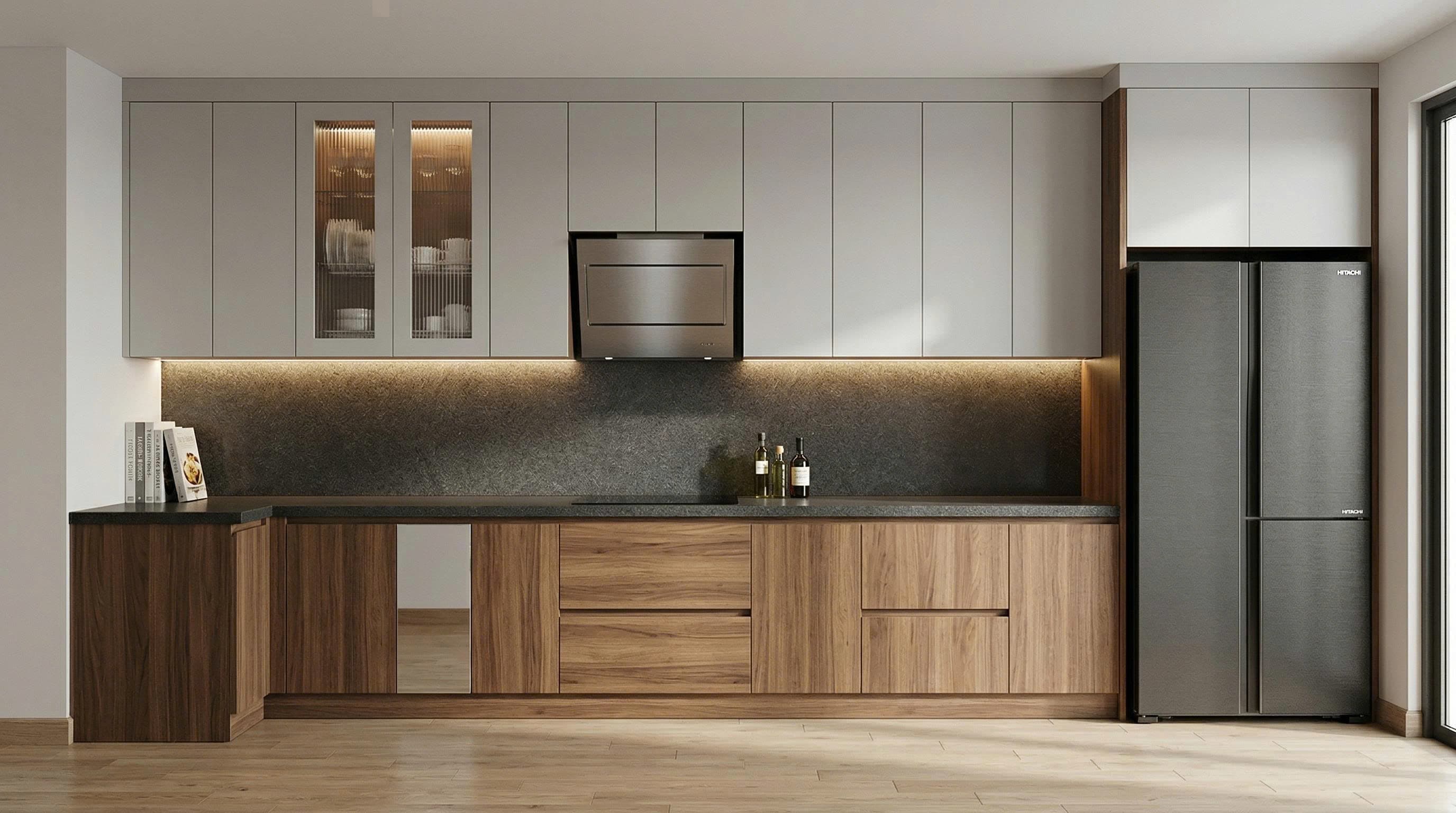
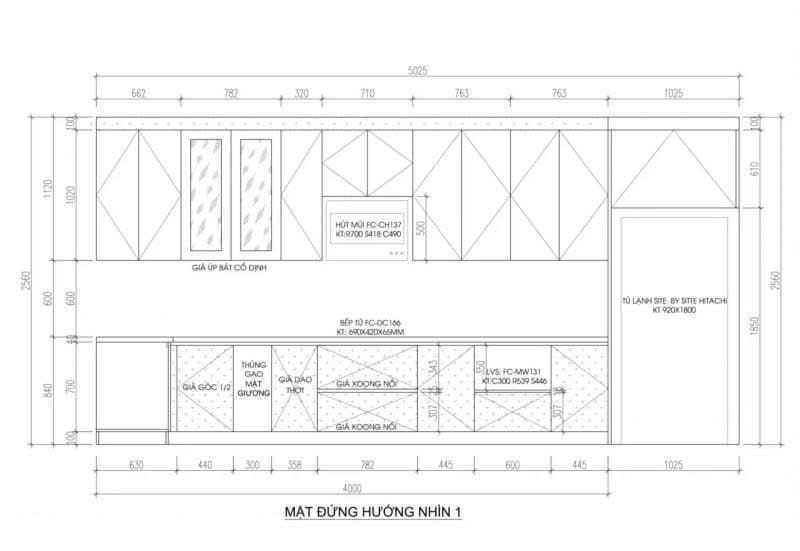
More options for every design proposal
From model views to presentation images: choose an Agent for each task, compare options and communicate your ideas more clearly.
Explore visual options
Explore styles, viewpoints and visual treatments from an input image to build options for your presentation.
Cloud-based AI rendering
AI rendering tasks run in the cloud. Upload images, choose an Agent and review results in your browser while retaining your modeling workflow.
Manage images in Studio
Sign in to access your library and render history, and revisit generated images as you develop a proposal.
Present and share proposals
Collect images into an online presentation and share a link. Review the content and version before sending it to clients.
Explore materials in context
Use reference images to explore surfaces and fixtures in a space. Compare colors, proportions and details with actual product samples.
Costs that fit your workload
Choose a subscription or Pay per use, then compare total costs for the same number of accepted images to assess the fit for your work.
Plan costs around your workflow
Compare time and total costs for the same number of accepted images, rather than just the price of a render.
Estimate using your costs
Compare the same accepted image volume. Include modeling software, retained hardware, repeated renders and review/editing work in both options. Use your actual costs.
Enter all five non-negative values to see the estimate.
From source images to a presentation
Keep your familiar design tools and use Visual Agents to explore visual treatments. Each step helps clarify your ideas before discussing them with clients.
Prepare an image & brief
Use a suitable site photo, model image or drawing. Describe the layout, materials and changes you want.
Choose an Agent & generate options
Choose an Agent for viewpoints, detail edits, color tones or perspective images. Add references and instructions as needed.
Review & refine
Compare composition, geometry, materials and details with the brief. Refine the proposal before presenting or downloading images.
This diagram illustrates the workflow. Actual time and quality depend on the input, model and task; AI images do not replace technical documentation.
7 Specialized AI Agents
Choose an Agent for your goal: explore viewpoints, edit details, try color tones or turn drawings into perspective images.
Cinematic Angles & Emotional Renders
Explore additional viewpoints from a viewport image to develop your presentation.
STEP 1: Upload a screenshot of your 3D viewport.
STEP 2: Click Generate to explore additional viewpoints.
STEP 3: Review the generated image set and select suitable viewpoints.
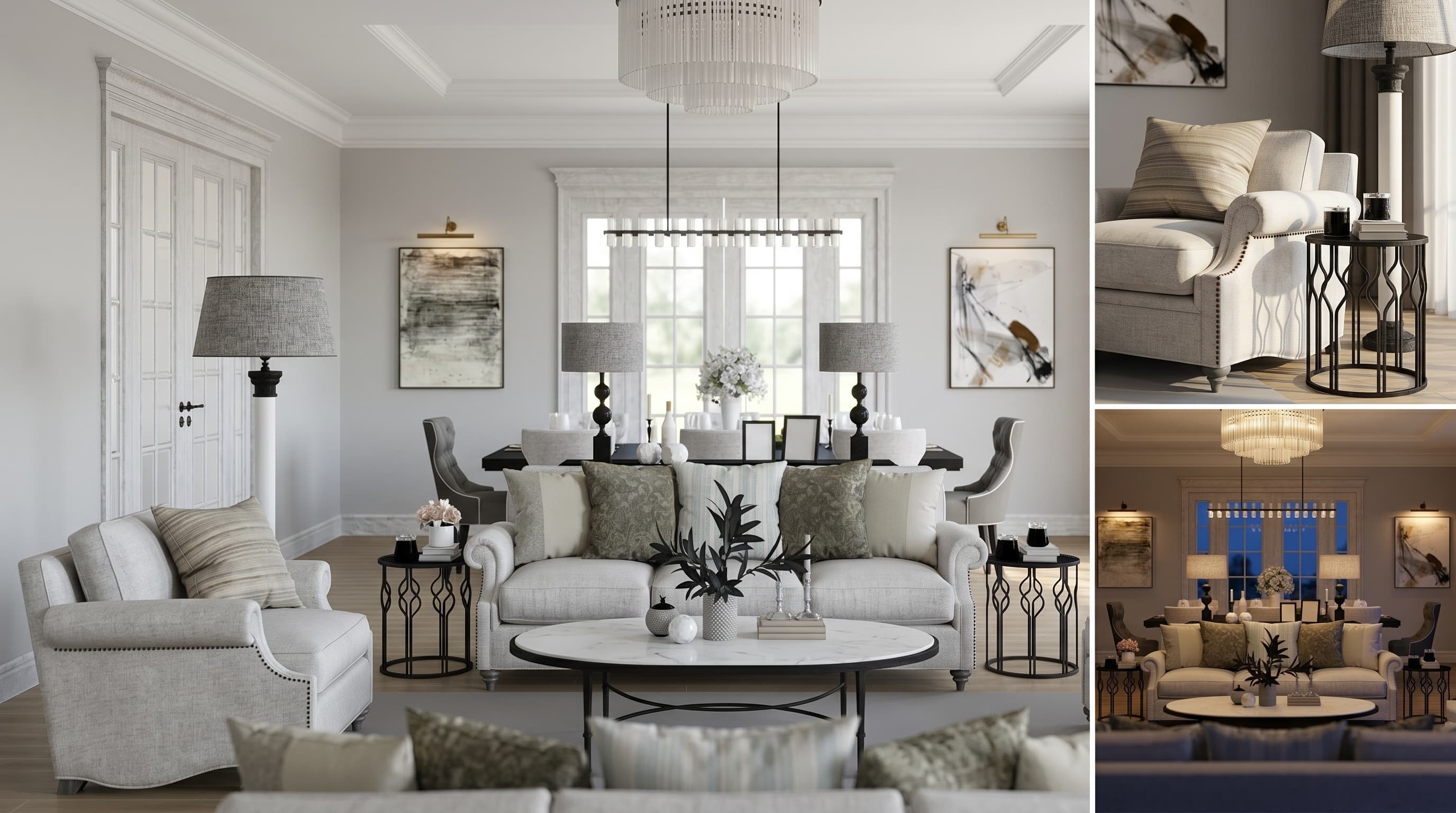
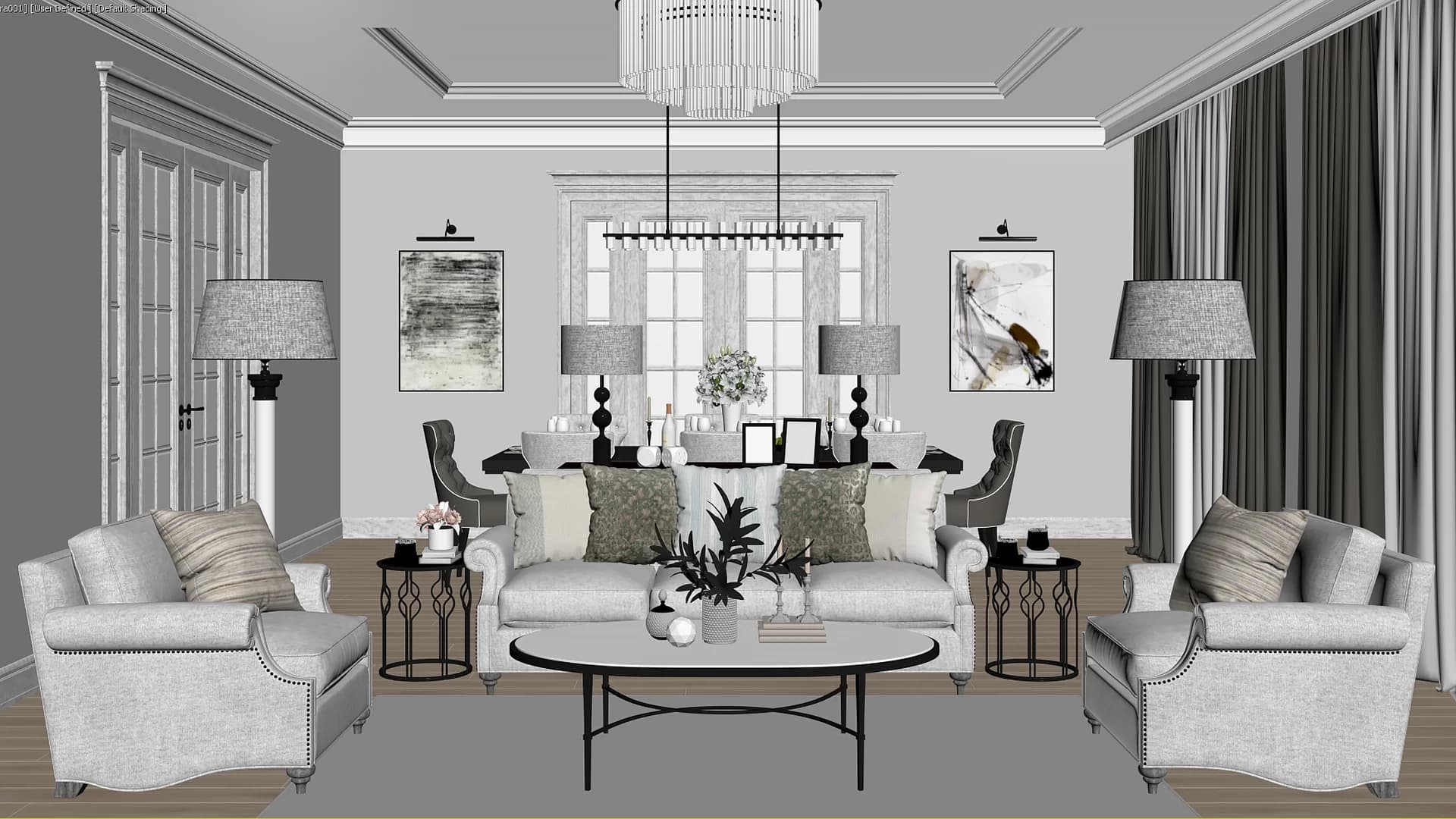
These are recorded illustrative examples. New results vary with the input image and model.
Bring your ideas closer to clients
Every business has different image needs. Explore how Visual Agents supports visual presentations and proposal discussions.
Furniture showrooms
Isolated product photos make it hard for clients to picture furniture in their own room.
Use space images and product references to explore layouts, colors and styles before a consultation.
Compare options in the same context
Bathroom fixtures
Clients struggle to picture how fixtures, surfaces and lighting work together in a bathroom.
Create bathroom proposals from source images and fixture references; check product shape, scale and details when selecting results.
Show fixtures in context
Building material dealers
A stone, wood or paint swatch cannot show the feel of an entire space.
Try materials in an existing space image to compare surface options. Use physical samples to confirm colors and details during consultation.
Visualize before choosing materials
Real estate developers & agents
Site photos can struggle to convey the potential of an empty space; marketing proposals need a consistent visual direction.
Explore interior proposals from site photos and define a style for the image set. Identify AI illustrations separately from existing conditions when publishing.
Show a space's potential
Freelance architects & designers
Developing designs while preparing multiple presentation images makes project time and costs difficult to balance.
Keep your familiar modeling tools, export source images and use Agents to develop presentation options. Choose a plan for your workload.
More options for presentations
Explore materials in context
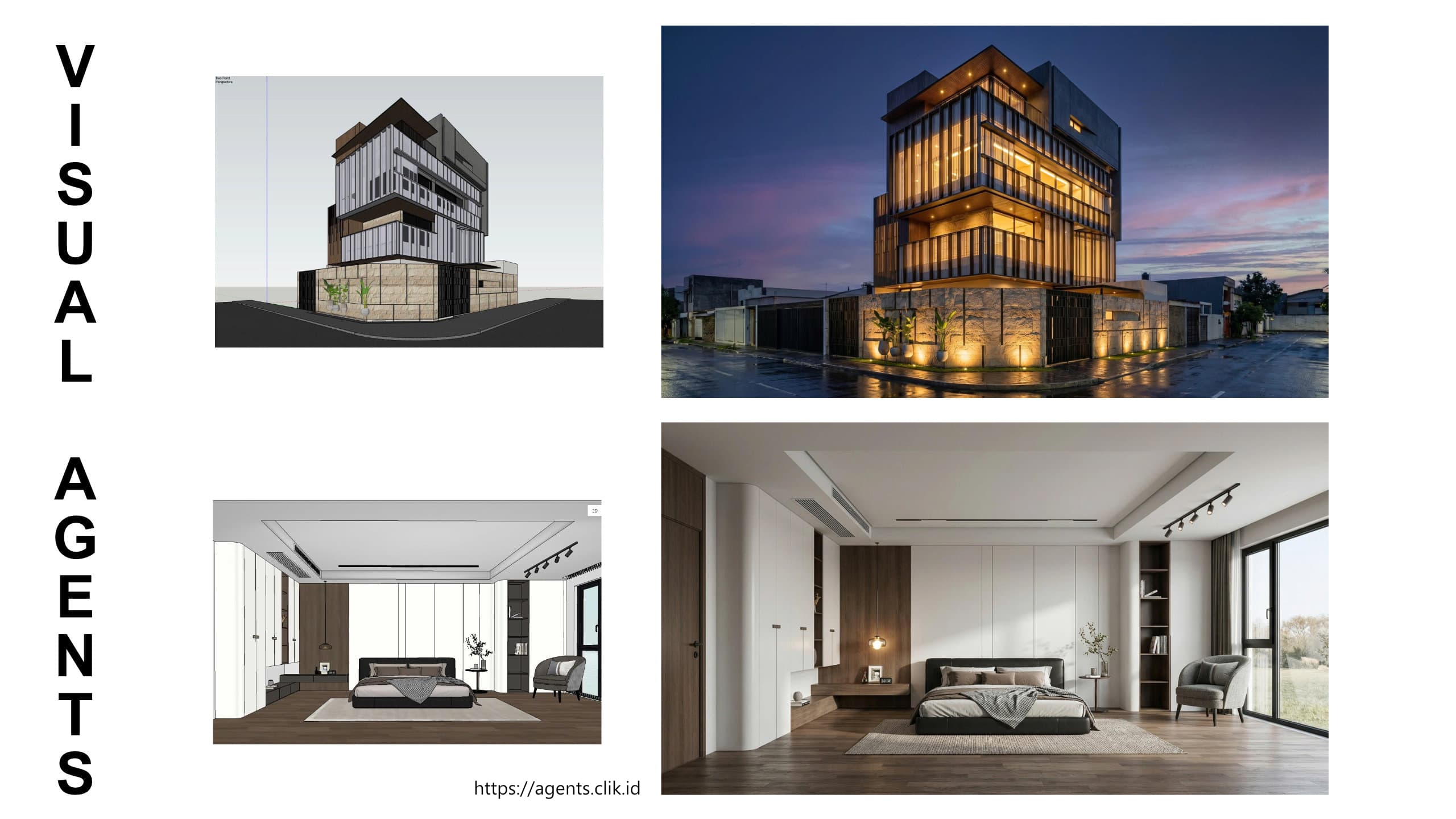
View the input and result from each example set. These are existing illustrations; selecting a sample here does not generate a new render.
Compare colors, proportions and details with actual material and fixture samples before using images for a project.
Open Studio to explore your own options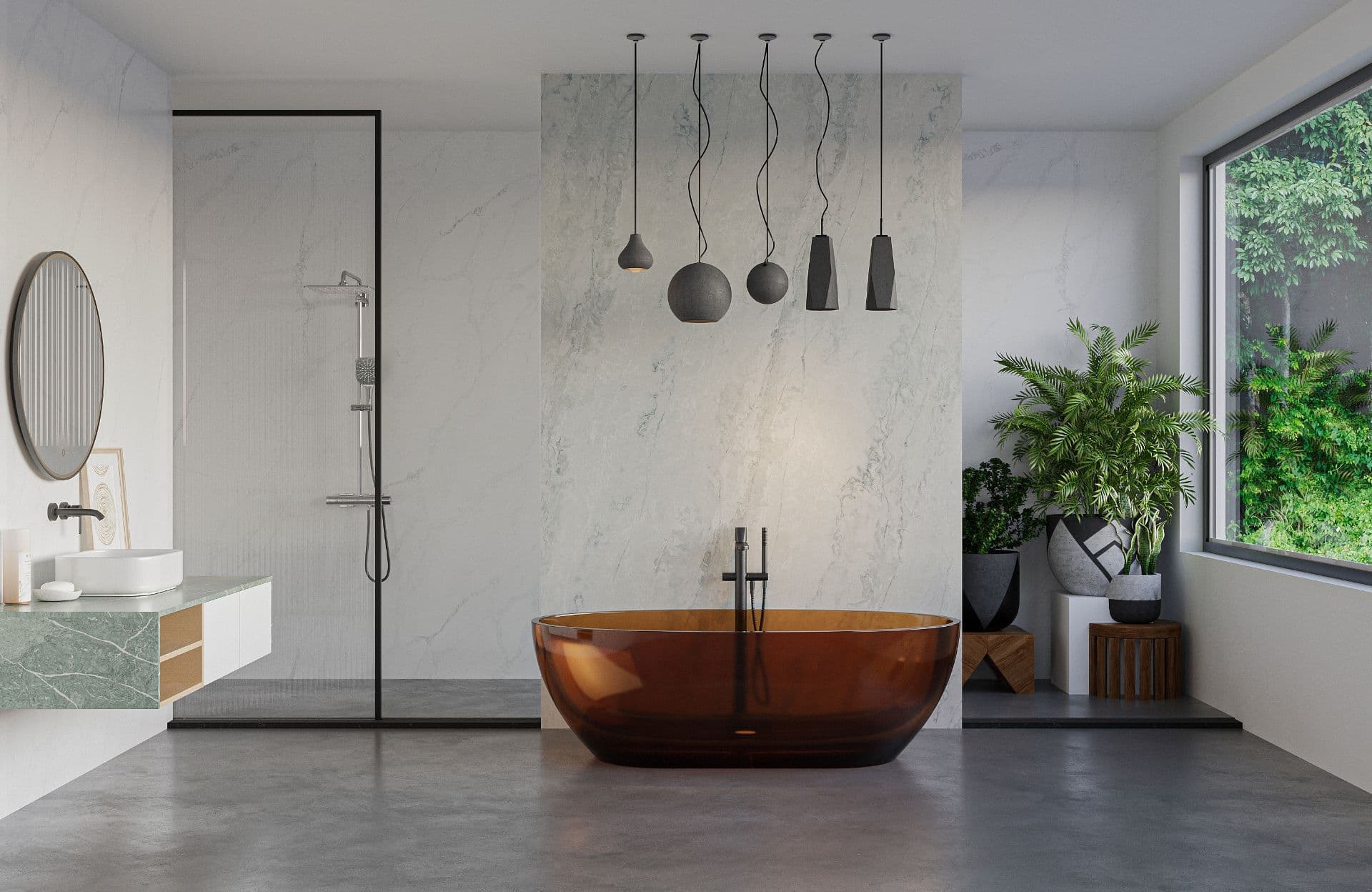
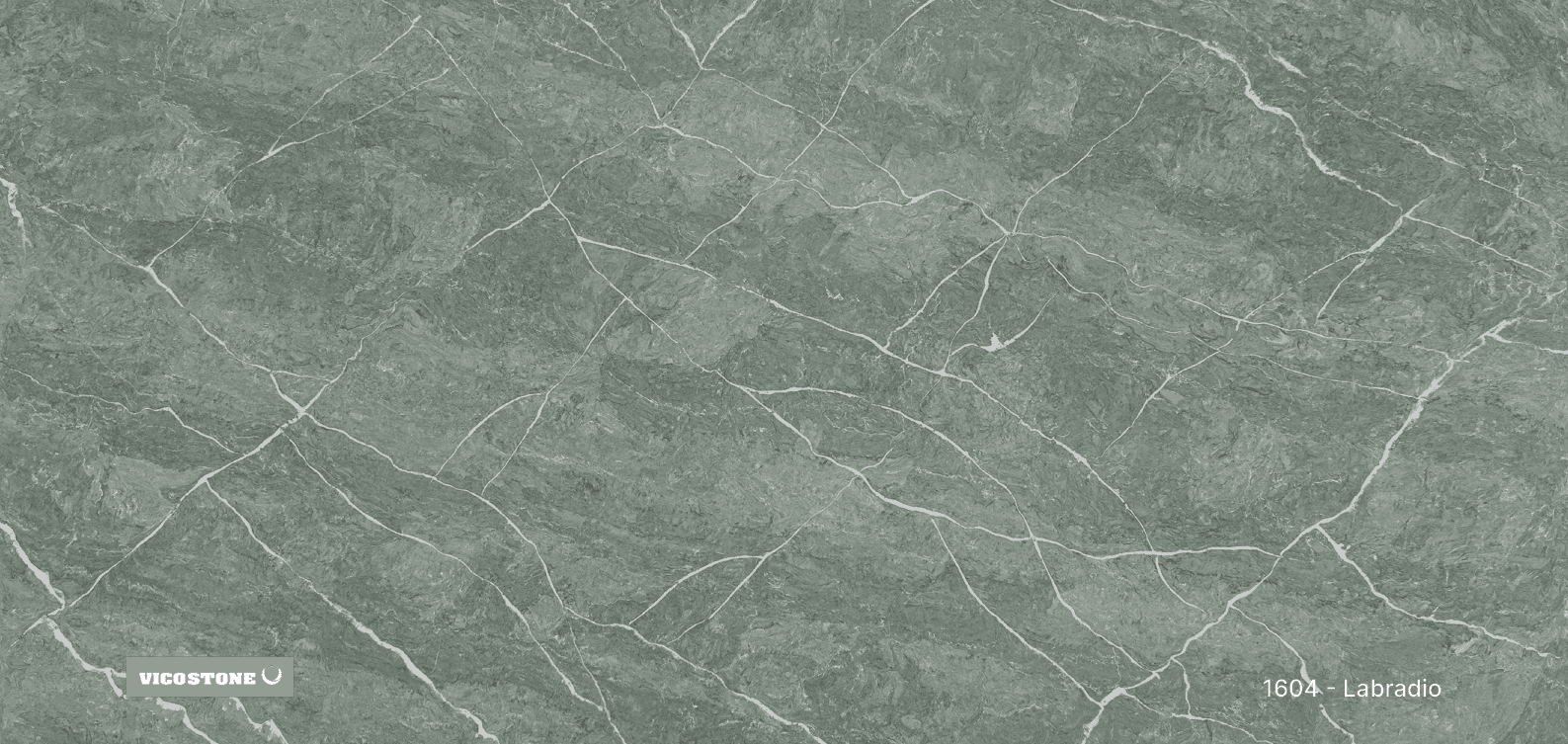
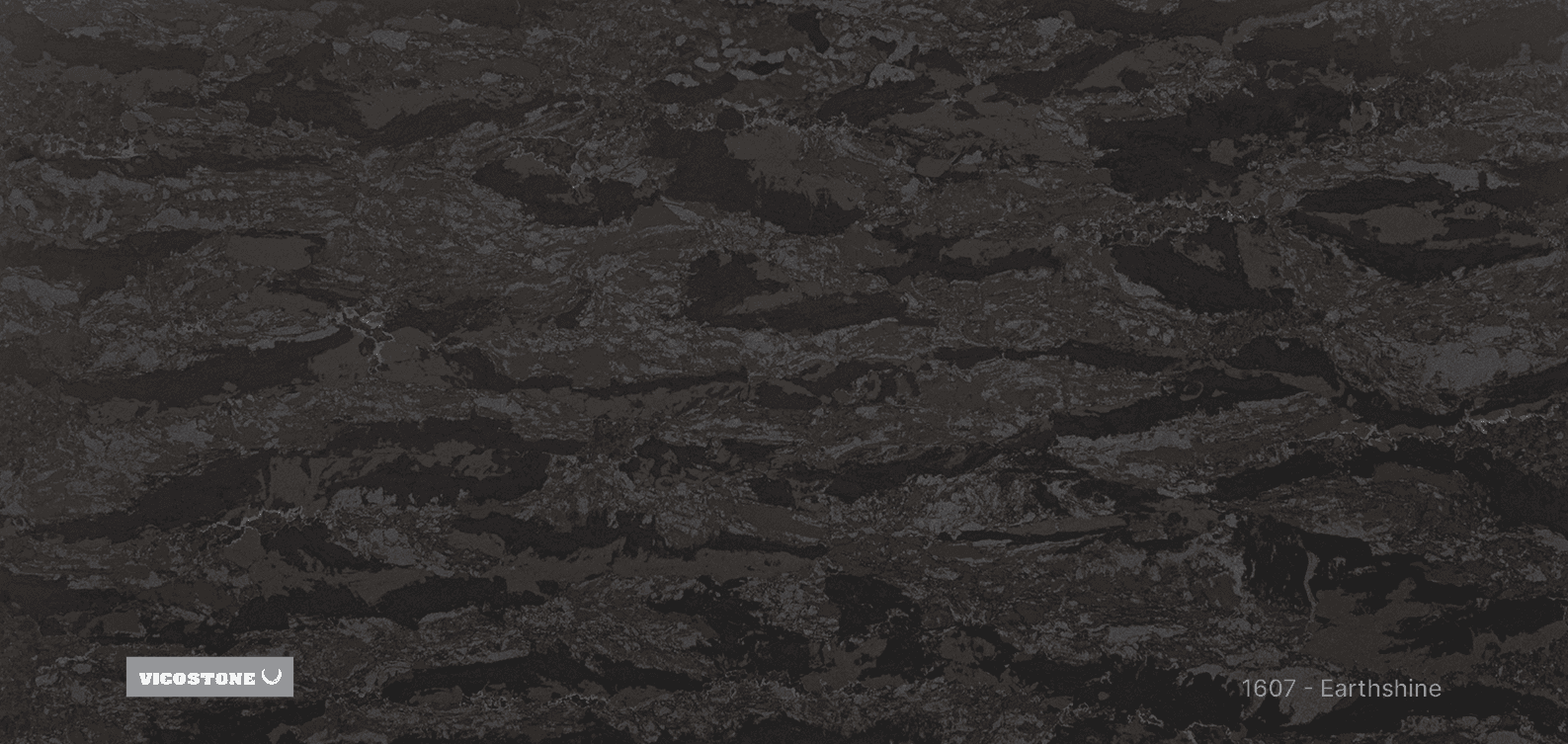
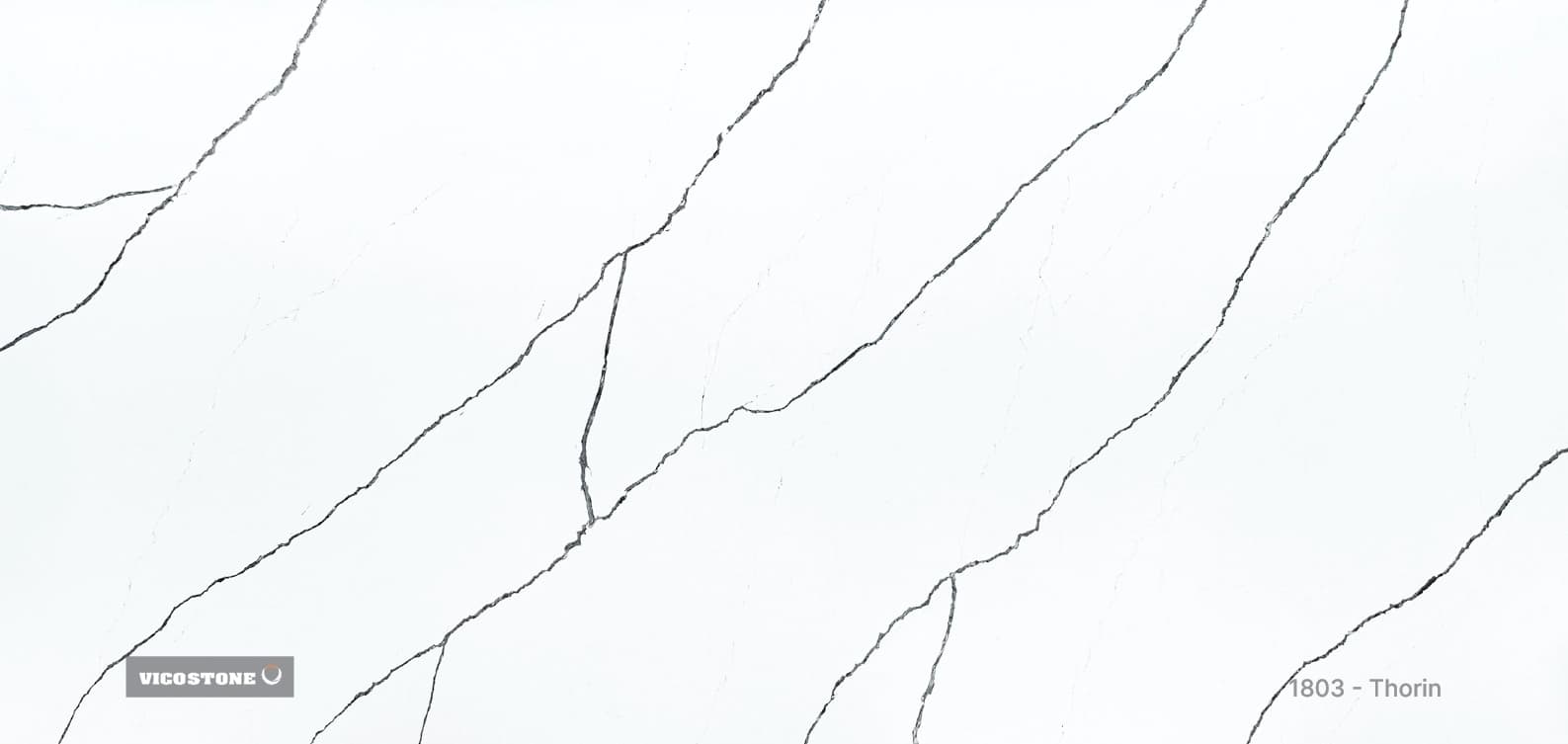
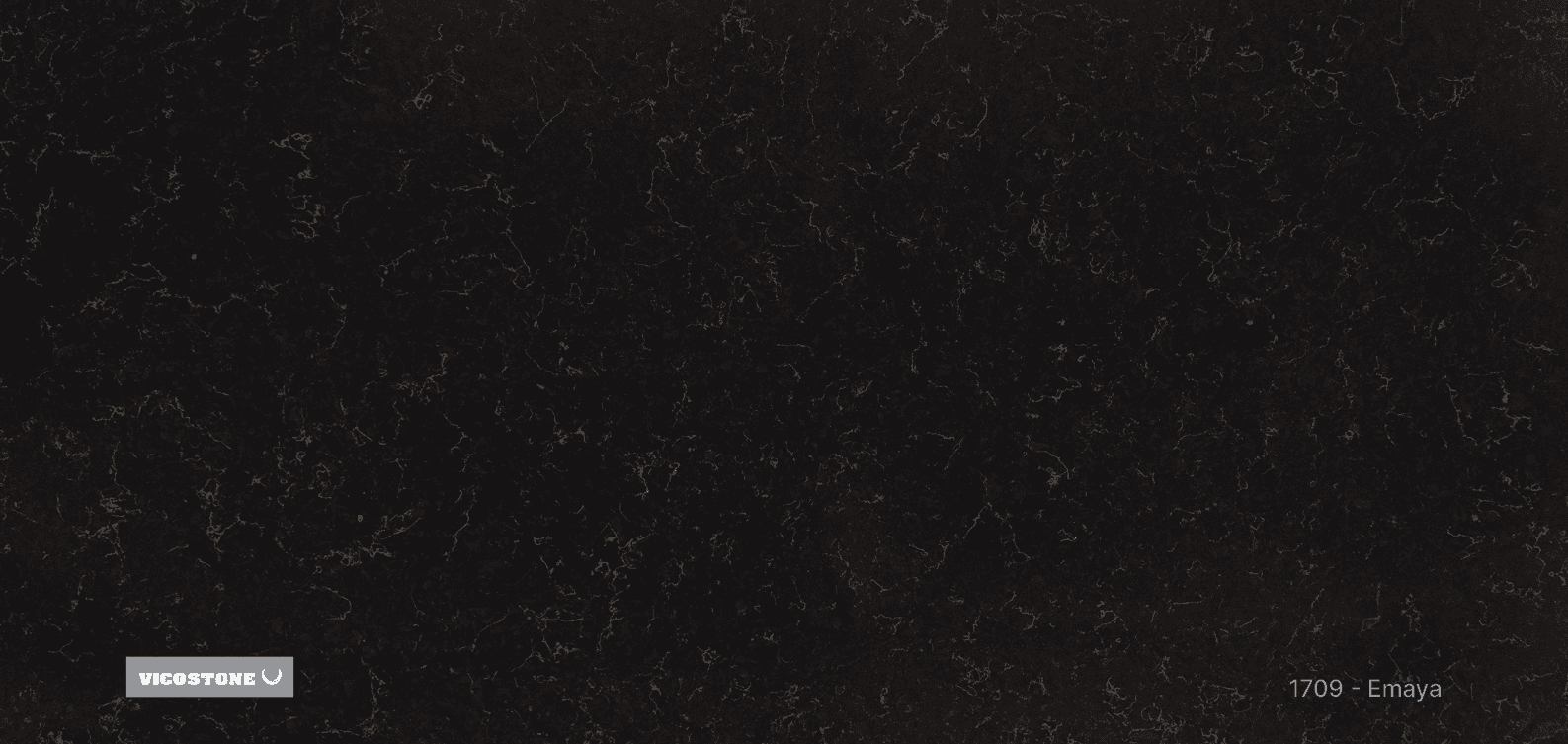
Reference images used in this example set

Bring your proposal together and share a link
Help clients and teammates review the images you have selected.
Create a presentation from your Studio images and send a link to discuss the proposal. Check the images, notes and displayed version before each share.
Open Studio nowopen_in_newMore ways to visualize a space
A selection of interior concepts created with Visual Agents.
Start with one of your proposals
Bring a model view or site photo into Studio, choose an Agent and explore a visual direction for your project.
Check plans, prices and usage limits before rendering